Controls & help
Food Devils combat preview & enemy range
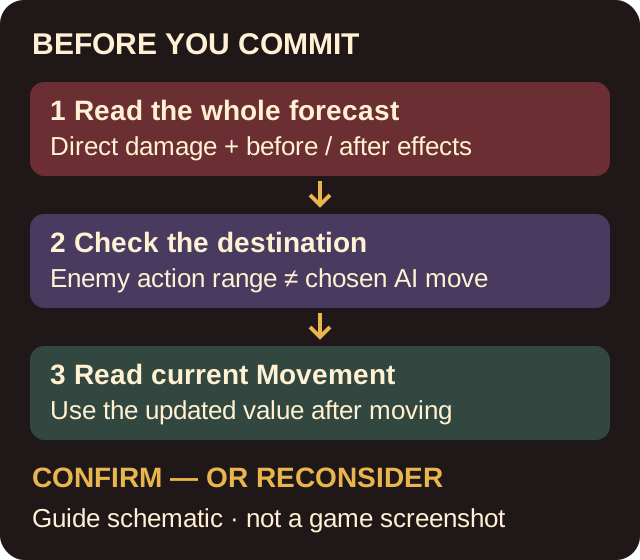
Read Food Devils' direct attack damage separately from effects that happen before or after combat. The updated Demo's preview separates those values. A single attack number is therefore not the whole forecast.
The purple enemy-range preview describes tiles an enemy can act upon, not a promise that it will choose a particular attack. Check both the planned action's effects and the position you will leave your adventurer in.
On this page
Read the forecast before committing the action
- With your intended action's combat preview visible, identify the direct attack damage.
- Read the separately displayed before-combat and after-combat damage, including status or passive effects shown there. Do not silently add an effect twice because it appears in a separate part of the preview.
- For an area attack, inspect the affected targets and their displayed forecast rather than assuming the single-target number applies to every target.
- Check whether the expected result leaves your unit exposed to the enemy's action range. If it does, compare another legal destination or action before confirming.
The July 31 v0.4.0 update explicitly added the before/after split and fixed incorrect AoE preview damage. An old screenshot from before that update is not a reliable guide to the expanded Demo's presentation. This is a reading workflow, not a damage formula or a guaranteed kill calculation.
Do not confuse threat tiles with remaining movement
| Display | Documented meaning | How to use it |
|---|---|---|
| Purple enemy range | The enemy can act upon the highlighted tiles. | Check whether your intended final position is within that threat, without predicting the AI's exact choice. |
| Remaining Movement | Updated in real time during the Movement Phase. | Read the current value after moving, rather than reusing the number from the start of the phase. |
| Selected action | The updated Encounter interface highlights it with a yellow border. | Confirm that the forecast belongs to the action you intend to take. |
If the numbers or terms still do not make sense
Use the updated Info control to open nested terms with one press, or open the Encounter context menu with Escape or an empty map tile and choose Glossary. The information guide shows the reference routes and locates Training Grounds outside the restaurant for practising a mechanic separately.
If a current preview appears inconsistent with the actual result, retain the build, action, targets, before/after screenshots and input method for a bug report. The old AoE fix does not prove every current discrepancy is impossible, and this guide does not offer an unverified recalculation formula.
See the October Demo in context
Watch & learn
Food Devils in an October Demo recording
The Food Devils chapter starts at 1:44:11 in this multi-game recording. Play here starts at 1:50:00, on its tactical map. The thumbnail identifies the complete recording, not a standalone Food Devils video.
1 videos shown
NextFest - October 2026 - Part 2
A player-linked October Demo recording. Use the selected map scene for visual context; the written developer update supplies the preview rules.
The selected chapter shows a creator's Demo session. We inspected individual scenes at 1:50:00 and 1:52:10, not the entire recording or a full walkthrough. The exact preview meanings above come from the developer's written update.
You have checked the action when…
You can distinguish direct damage from before/after effects, identify the intended targets and selected action, and judge the destination against enemy action range and the current Movement value. If the effect remains unclear, inspect that term before confirming rather than treating an uncertain forecast as a guaranteed result.
Sources & version
July 31 v0.4.0 official update documents the preview split, AoE correction, purple enemy range, live Movement display and selected-action border. October 30 creator feedback motivates the UI task and links the original recording. No in-session gameplay or exhaustive mechanic test is claimed.